
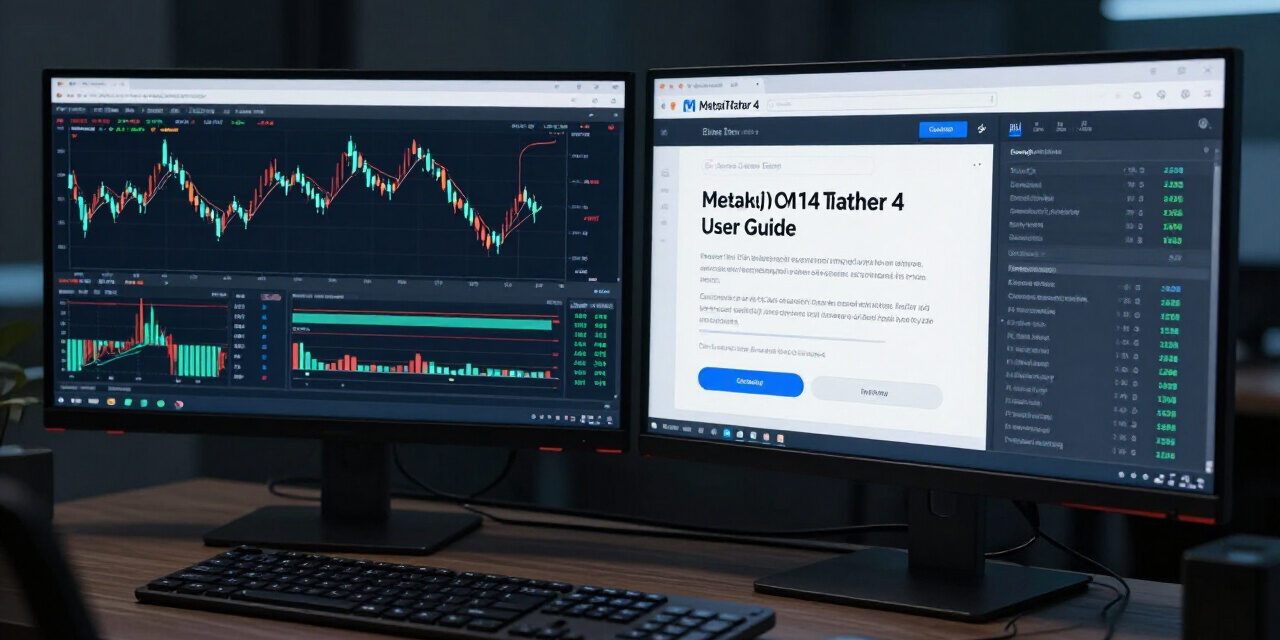
MetaTrader 4 remains the dominant terminal for retail currency trading in October 2026, and most successful scalpers, swing traders, and algorithmic developers still build their edge on its raw execution layer. Understanding how each module connects to your brokerage server, how to read the depth of market correctly, and how to script your first Expert Advisor determines whether you fight latency or exploit it. This guide walks you through every critical configuration step, from the initial download through advanced automated order routing, so your workspace behaves like a professional trading desk.
Before we dive into charts and buttons, it helps to know why the platform still commands such loyalty after more than two decades of competition. MT4’s greatest strength is not its interface alone, it is the consistency of its execution model across thousands of regulated brokers worldwide. When you learn the terminal once, you can apply that skill to almost any ECN, STP, or market-maker condition without relearning core mechanics.
The sections below break the platform into digestible blocks. Each explanation begins with a direct takeaway, so you can skim confidently and still absorb the nuance. By the time you finish reading, you should be able to install MT4 cleanly, configure custom workspaces, interpret price action, and decide whether manual or automated trading suits your personality and schedule.
What Is MetaTrader 4 and Why Do Forex Traders Rely on It?
MetaTrader 4 is a desktop-oriented trading terminal that connects retail traders to interbank liquidity through ECN, STP, and market-maker brokerage gateways, offering sub-millisecond order routing, four order types, and native MQL4 algorithmic development. Traders choose MT4 because it combines stable execution during news events with a scripting language mature enough to power automated hedge fund strategies on modest personal computers.
The platform gained dominance during the mid-2000s because it solved a practical problem: most brokers offered clunky web portals that froze during volatile data releases. MT4 introduced a lightweight client-server architecture that routed orders through centralized gateways, reducing slippage and enabling traders to queue limit orders while multiple charts ran simultaneously. Even now, in October 2026, newer platforms emerge and fade while MT4’s user base continues expanding across emerging markets where PC hardware stays modest but reliability matters most.
Beyond execution, MT4’s longevity stems from its MQL4 Integrated Development Environment. Unlike drag-and-drop strategy builders on other terminals, MT4 allows developers to write custom indicators and expert advisors using a language syntactically close to C. This flexibility birthed an entire economy of third-party signal sellers, copy-trading services, and automated hedge fund robots that still influence retail trading volumes today.
Is MetaTrader 4 Still Relevant in 2026?
Yes, MetaTrader 4 remains one of the most actively used platforms among retail forex traders in 2026, primarily due to its lightweight architecture, consistent execution speeds, and widespread adoption across global brokers.
Even with newer platforms entering the market, MT4 continues updating its core infrastructure to address security patches and enhance execution reliability, ensuring that both novice and experienced traders maintain access to essential trading tools and functionalities.
Step-by-Step MT4 Installation and Setup
Installing MetaTrader 4 correctly requires downloading the terminal from either your regulated broker or the official MetaQuotes distributor, selecting a dedicated installation folder to prevent file conflicts, disabling unnecessary DLL imports, and then verifying server connectivity before committing real funds to live trading conditions.
A rushed installation often leads to missing historical data feeds or delayed price tickers that sabotage algorithmic backtests. Follow the checklist below to guarantee a clean setup every time you reinstall MT4 on a new workstation or virtual private server.
1. System Requirements and Platform Compatibility
MetaTrader 4 operates efficiently on Windows 7 or newer systems with a minimum of 1 GB RAM and 50 MB disk space, though Mac and mobile versions now provide near-feature parity for traders who prefer portable workflows over traditional desktop installations.
Most modern traders assume any laptop can run MT4, but inadequate RAM or fragmented hard drives cause noticeable delays between clicking an order button and seeing confirmation flash on-screen. Allocate at least 2 GB of RAM to the MT4 process during active trading sessions, and keep your graphics driver updated so moving charts do not stutter during fast market conditions. The terminal uses a single-threaded processing engine, meaning additional CPU cores rarely improve order execution speed, but they do help when you run dozens of charts and custom indicators simultaneously.
On macOS, MetaTrader 4 runs through a compatibility layer rather than native code, introducing slight input lag during extreme volatility. If you rely on millisecond timing for scalping strategies, prefer a Windows workstation or dedicated VPS located geographically near your broker’s server cluster. Mobile versions omit the strategy tester entirely, making them useful only for monitoring positions between client meetings or while traveling.
2. Downloading the MT4 Terminal from a Regulated Broker
Always download MetaTrader 4 directly from your broker’s official website or MetaQuotes’ verified installer to avoid tampered executables that inject malicious DLLs into your trading environment.
The MT4 installer itself is small, roughly 900 KB, but it immediately downloads several megabytes of core components during first run. Reputable brokers publish digital signatures confirming authenticity; inspect these signatures before executing the installer. Fraudulent versions often appear on search result pages, so bookmarking the official URL protects against future typosquatting traps.
During installation, choose a destination folder labeled clearly, such as “MT4_BrokerA,” especially when running multiple broker accounts simultaneously. This practice prevents conflicting configuration files from overwriting saved chart layouts or custom indicator presets. Each folder maintains its own history center database, so keeping brokers isolated avoids accidental cross-contamination of historical price data, which would corrupt backtesting accuracy for algorithmic strategies relying on precise tick simulations.
3. Installing MT4 Without Conflicts on Windows
To prevent configuration conflicts, install each MT4 instance into a uniquely named folder, run the terminal as administrator only during setup, and avoid installing multiple brokers into shared directories where profile files can overwrite each other’s settings.
Windows users often encounter mysterious slowdowns after installing several MT4 terminals side by side. The culprit is usually profile corruption where newer installations accidentally load registry entries or .ini files created by older instances. To prevent this, launch each installer separately, choose distinct installation paths, and never allow the default overwrite option to remain checked unless you intend to replace a previous version completely.
After installation completes, right-click the terminal shortcut and select “Open file location” to confirm its folder path matches your intended structure. Create desktop shortcuts labeled with both broker name and server location, so you can instantly identify which account you are logging into during volatile market sessions. This simple habit prevents costly mistakes, such as sending large orders to a demo account when you meant to execute on your funded live profile.
4. Creating and Securing Your First Trading Account
Creating your first MetaTrader 4 account involves selecting an account type, choosing a server, defining lot sizes, enabling auto-trading permissions, and immediately testing connectivity with a small market order before committing significant margin capital to active positions.
When prompted for account details, opt for a demo account initially unless you are a funded professional trader with verified risk controls in place. Demo trading allows you to explore order execution speeds, slippage levels, and interface responsiveness without risking real capital. Once comfortable with basic navigation, consider switching to a micro account with minimum deposits under $100 to evaluate execution quality during live market hours.
Enable two-factor authentication on both your MT4 account and broker portal to reduce unauthorized access risks. Store your account credentials separately from your trading computer, ideally in an encrypted password manager that syncs across devices without exposing passwords to keyloggers commonly found on compromised public networks.
5. Configuring Charts, Timeframes, and Layout Presets
Configuring charts effectively requires pinning the most critical instruments to the left edge of your workspace, assigning hot keys for rapid timeframe switching, enabling object-chart synchronization to prevent accidental deletions, and saving layout templates so you can restore your exact environment after restarting the terminal.
Professional traders often arrange six to eight charts vertically on a dual-monitor setup, dedicating the left screen to short-term instruments and the right screen to longer-term positioning. Use the “Profiles” feature to save groups of charts by market theme, such as “majors,” “commodities,” or “exotics,” allowing you to switch contexts instantly without manually reloading symbols.
Apply consistent color schemes across all charts so support and resistance levels appear uniform regardless of timeframe. Enable “Ask Line” and “Daily High/Low” tools on every chart, as these provide immediate visual cues for breakout confirmations during fast-moving news events. Save these settings as templates within the chart menu, then apply them to fresh charts with a right-click to enforce visual consistency throughout your workspace.
6. Setting Up Expert Advisors and Automated Strategies
Enabling automated trading safely requires activating the AutoTrading button, reviewing each EA’s input parameters, testing strategies in strategy tester mode with visible controls enabled, and running a brief demo period before allowing live execution on real accounts.
Never enable automated trading immediately after loading an Expert Advisor onto a chart. Instead, open the EA’s Properties dialog and examine its input parameters to confirm trade sizes, stop-loss distances, and slippage tolerances match your risk management framework. Many novice traders unknowingly allow EAs to open oversized positions because the default contract size remains set to 100 lots rather than the intended micro lot value.
Before running live, simulate market conditions using the built-in Strategy Tester with “Every Tick” modeling enabled. This mode replays historical data with realistic spread fluctuations, revealing whether your EA would have survived past market crashes or extreme volatility spikes. Only after verifying consistent positive results should you permit live execution on a small funded account.
Core Trading Tools Inside the MT4 Terminal
The MT4 terminal organizes its deepest functionality into four persistent windows: Market Watch for symbol browsing, Chart Window for price visualization, Terminal for trade monitoring, and Navigator for managing indicators, scripts, and expert advisors with drag-and-drop simplicity.
Although the interface looks dated compared to modern web-based platforms, MT4’s four-window architecture remains remarkably efficient for fast order entry. Traders rarely leave the main screen once they memorize keyboard shortcuts for switching between Market Watch, Charts, and the Terminal panel.
Market Watch and Order Execution Mechanics
The Market Watch window displays live currency pairs with real-time bid/ask spreads, allowing traders to double-click any symbol to open a chart instantly or use the “New Order” hotkey (F9) to execute market or pending orders directly from the ticker strip without navigating through additional menus or confirmation dialogs.
Understanding the difference between market execution and instant execution determines how you manage slippage during high-impact data releases. Market execution fills orders at the best available price in the liquidity pool, which can result in slight slippage if the gap exceeds your predefined tolerance. Instant execution allows you to set a specific price level, but rejected orders during extreme volatility can delay position entry or cause missed opportunities.
Use the small “Symbols” button to customize your ticker list by adding exotic pairs, commodities, or indices your broker supports. Right-click any symbol and choose “Show All” to expose hidden instruments not displayed by default. This technique proves invaluable when trading less popular pairs whose spreads expand dramatically during off-peak sessions.
Charting and Technical Indicator Suite
MT4’s charting engine supports nine standard timeframes ranging from one-minute to monthly views, overlaid with three adjustable price axes, a customizable toolbar, and over 50 native technical indicators that update in real time without freezing during active market conditions.
Switch between timeframes using hotkeys located at the top of each chart window, or right-click anywhere on the chart to access “Timeframes” submenu instantly. Customize which timeframes appear on the chart toolbar by navigating to Tools > Options > Charts and checking only the periods relevant to your strategy. Removing unused timeframes declutters the interface and reduces memory overhead during multi-chart analysis sessions.
For serious technical analysts, MT4 permits unlimited custom indicators written in MQL4. Download free oscillators like MACD or RSI enhancements from trusted code bases, but always scan downloaded files with updated antivirus software before importing them into your terminal. Malicious scripts disguised as indicators have previously exploited Windows vulnerabilities to steal login credentials or drain trading accounts.
The Navigator panel houses every custom indicator, script, and expert advisor in a collapsible tree structure, enabling drag-and-drop deployment onto charts with immediate attachment, while color-coding distinguishes custom-built files from factory-default indicators to prevent accidental overwrites during strategy updates.
When deploying an Expert Advisor onto a chart, review its “Inputs” tab carefully. Default values often assume standard market conditions, but during high-impact news events, default stop-loss distances may leave positions exposed to excessive risk. Modify these inputs before allowing the EA to begin trading actively.
Use the “Scripts” section to execute one-time actions such as closing all open positions or deleting pending orders. Unlike indicators that remain attached to charts indefinitely, scripts execute their function once and automatically detach, reducing processing overhead during intensive backtesting sessions.
Terminal Window and Trade Monitoring
The Terminal window provides four tabbed views for monitoring active trades, pending orders, account history, and mailbox alerts, presenting real-time profit/loss updates alongside margin level percentages that help you quickly assess whether additional positions might trigger a margin call during extreme market conditions.
Watch the “Margin Level” indicator located at the bottom of the Terminal window. Values below 100 percent indicate insufficient free margin to maintain existing positions, often resulting in forced liquidations during sudden market spikes. Keep buffer funds readily available to meet margin calls without sacrificing core positions in your portfolio.
Customize alert notifications by right-clicking any open position and selecting “Modify or Delete Order.” Enable trailing stops and set custom alert thresholds for specific currency pairs. These alerts prove especially useful when trading major pairs during overnight sessions while you sleep, ensuring positions close automatically if adverse price movements exceed predetermined tolerance levels.
Common Pitfalls New MT4 Traders Must Avoid
Experienced MT4 users consistently warn newcomers against enabling auto-trading without testing, misinterpreting pending order execution rules, neglecting to update custom indicators regularly, and ignoring margin call warnings during volatile market conditions.
New traders often install dozens of custom indicators simultaneously, unknowingly slowing chart rendering speeds to dangerous levels where price updates lag several seconds behind live feeds. During fast-moving news events, delayed price data leads directly to catastrophic slippage as orders fill at wildly unfavorable prices compared to intended entry levels.
Another common mistake involves misunderstanding pending order mechanics. Pending orders like Buy Limit and Sell Stop trigger only at specified price levels, but traders frequently forget these orders remain active until manually canceled or automatically deleted when margin calls occur. Leaving dormant pending orders active during unpredictable market spikes can generate unexpected losses when suddenly triggered by temporary price spikes unrelated to fundamental news events.
Ignoring platform notifications proves equally dangerous. MT4 displays pop-up alerts whenever margin falls below critical thresholds, but many traders disable these warnings to reduce interface clutter. Instead of disabling alerts entirely, customize sound notifications so urgent margin warnings still reach you even when MT4 runs minimized in the background while you handle other tasks.
Frequently Asked Questions About MetaTrader 4
Understanding MetaTrader 4 licensing, compatibility, and advanced trading features clears up the most common concerns new users face when evaluating whether MT4 suits their trading strategy, device compatibility, and risk tolerance requirements for 2026.
Can I Run MetaTrader 4 and MetaTrader 5 Simultaneously?
Yes, MetaTrader 4 and MetaTrader 5 can operate simultaneously on the same device without file conflicts, provided each platform installs into separate folders with distinct registry entries to prevent configuration overlaps during automated strategy execution.
Maintain separate desktop shortcuts for each version to switch between interfaces seamlessly during comparative trading sessions.
Do I Need Programming Skills to Use MetaTrader 4?
While programming skills enhance automation capabilities, MetaTrader 4 remains fully functional for manual traders who rely on pre-built indicators, ready-made Expert Advisors, and broker-integrated copy-trading services without writing custom code.
Beginners should master basic manual trading first, then gradually explore automated tools once comfortable interpreting price charts and managing risk consistently.
How Do I Recover My MT4 Account After Reinstalling?
Recovering MetaTrader 4 accounts requires locating your broker’s server name, your login credentials, and any previously saved .ex4 or .mq4 files stored in your original installation directory before reinstalling the terminal completely.
Most brokers automatically backup account settings on their cloud servers, allowing instant restoration via standard login procedures without complex recovery processes involving third-party backup tools.
Why Does MT4 Lag During Major Economic Releases?
MetaTrader 4 experiences temporary lag during major economic releases because thousands of traders flood liquidity pools simultaneously, overwhelming broker servers with order volume beyond normal processing thresholds established during quieter market sessions.
To minimize lag effects, widen your slippage tolerance slightly and avoid entering new positions precisely at release time until after initial volatility settles.
Is MetaTrader 4 Safe for Real Trading?
MetaTrader 4 is considered safe for real trading when downloaded from regulated brokers with proper financial oversight, robust encryption protocols, segregated client fund protection, and established track records in the brokerage industry.
Verify your broker’s regulatory status through official databases before depositing funds, especially if the broker offers unusually high leverage ratios or promises guaranteed profits through proprietary algorithms.
Ready to experience professional execution speeds and advanced charting tools?


Trackbacks/Pingbacks