
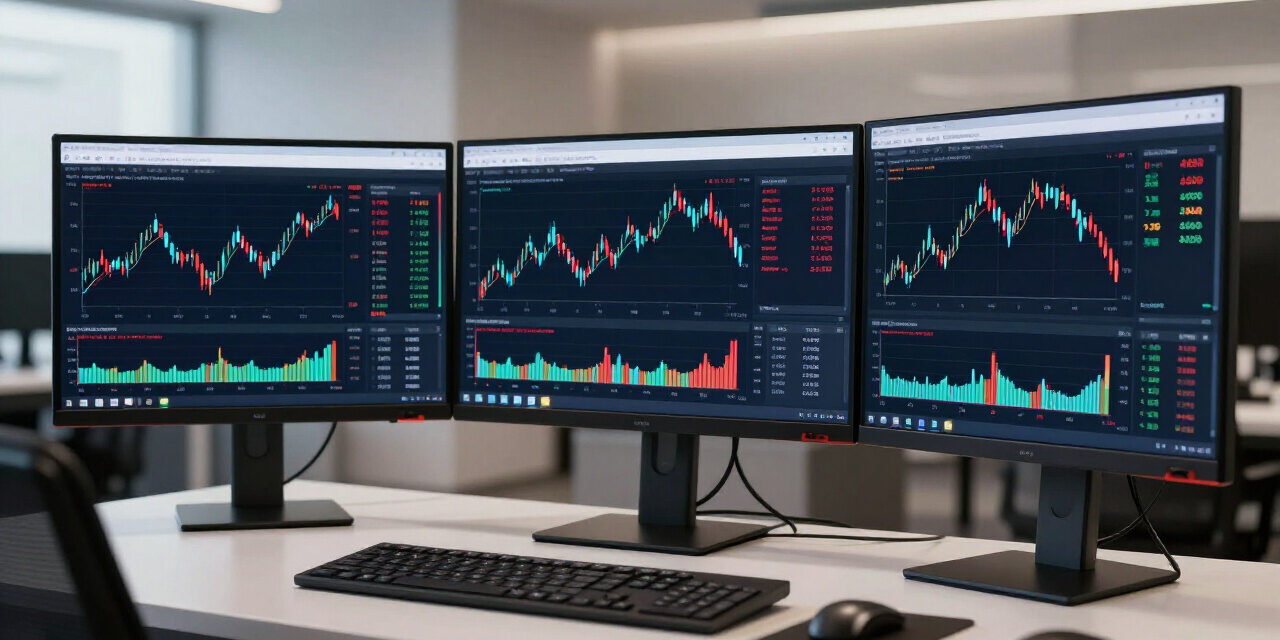
The MetaTrader 4 platform remains the definitive standard for retail foreign exchange traders seeking stability and algorithmic execution capabilities. When paired with the liquidity infrastructure of XM, the xm mt4 interface provides a robust environment for technical analysis, custom indicator integration, and automated trading strategies. Mastering the installation and configuration of this software is essential for maintaining consistent order execution and precise market timing in volatile conditions.
This guide examines the technical requirements and operational protocols for deploying the xm mt4 ecosystem across multiple operating systems. We address server connectivity issues, secure login procedures, and the installation of expert advisors to ensure your trading workstation adheres to professional performance standards. Proper configuration prevents latency-related slippage and ensures your financial capital remains protected within a secure, high-uptime digital trading environment during September 2026.
XM MT4 Download and Installation Procedures for PC
The XM MT4 installation process requires downloading the proprietary setup executable directly from the broker portal to ensure server compatibility. Users must run the installer with administrative privileges, select the appropriate data directory, and authenticate using their unique server credentials provided via email during the initial account registration phase.
To begin, navigate to the official XM website and locate the platforms section. Select the MetaTrader 4 for PC option to initiate the download of the terminal setup file. Once the file is saved to your local drive, execute the installer to begin the configuration of the client software.
During the setup, the wizard will prompt you to choose the destination folder for the application files. We recommend keeping the default directory unless you manage multiple platform instances for distinct trading accounts. Ensure that you check the box for creating a desktop shortcut for rapid access to your workspace.
- Upon completion of the installation, launch the terminal.
- You will be greeted by the server selection window.
- It is critical to select the exact server assigned to your account, such as XM-Real-15 or XM-Demo-3.
- Entering the wrong server will prevent the client from establishing a handshake with the trading engine.
Enter your account ID and password in the login window. If the connection is successful, you will observe real-time data packets flowing in the Market Watch window. If the status bar in the bottom right corner displays “Invalid Account,” verify your credentials or reset your master password through the user area.
Configuring XM MT4 for Mobile Trading Devices
Mobile trading with the XM MT4 application enables traders to monitor active positions and execute market orders remotely via iOS or Android devices. Configuration involves linking your existing broker account to the mobile app, ensuring synchronized data between your desktop terminal and handheld device for consistent portfolio management.
Search for the MetaTrader 4 application in your respective mobile store. Once downloaded, open the app and access the settings or accounts menu. Tap the plus icon to add an existing account, and search for the term XM in the server provider field to see the list.
Select your specific XM server from the dropdown menu to proceed. Input your trading ID and password precisely as they appear in your dashboard. Mobile devices utilize an encrypted tunnel to communicate with the liquidity pool, ensuring that your trading actions remain secure even on public cellular networks.
- Once logged in, customize your quotes list by adding the specific currency pairs or CFDs you trade regularly.
- The mobile interface provides access to standard timeframes and basic technical drawing tools.
- However, complex algorithmic execution is best reserved for the desktop version to avoid potential battery or connectivity limitations.
Always enable push notifications in the settings menu to receive price alerts and margin warnings directly to your mobile device. This feature acts as a secondary safety mechanism, allowing you to react immediately to significant price movements if you are away from your primary workstation or home office.
Executing Expert Advisors on the XM Platform
Expert Advisors represent automated trading scripts written in MQL4 that execute orders based on pre-defined technical conditions. Installing these on XM MT4 requires placing the source files into the terminal data folder, enabling automated trading in the software preferences, and attaching the script to a specific financial instrument chart.
To install a custom expert advisor, click on File in the top menu bar and select Open Data Folder. Navigate to the MQL4 directory and then to the Experts subfolder. Copy your .ex4 or .mq4 file into this specific location to make it visible within the terminal interface.
Restart your terminal to refresh the list of available tools. Once relaunched, find the Navigator window on the left side of your screen. Expand the Expert Advisors tree to locate your file. If you do not see it, right-click the tree and select Refresh to update the internal database.
- Before applying the script, go to Tools, select Options, and navigate to the Expert Advisors tab.
- Ensure that the Allow automated trading and Allow DLL imports boxes are checked.
- Without these permissions, the terminal will prevent the algorithm from interacting with the broker servers or third-party data libraries.
Drag the expert advisor onto your chosen chart. A configuration window will appear, allowing you to adjust input parameters and risk management variables. Ensure the smiley face icon in the top right corner of the chart is visible and smiling, which indicates the script is currently active and monitoring the market.
Advanced Algorithmic Performance Tuning
Practitioners often face latency issues when running high-frequency algorithms. To optimize the xm mt4 environment, consider utilizing a virtual private server (VPS). A VPS keeps your terminal active 24/7, even when your personal computer is powered down or disconnected from the internet, which reduces the chance of interrupted execution cycles.
Additionally, review the backtesting capabilities within the Strategy Tester panel. Before risking real capital, conduct rigorous testing against historical tick data to verify the logic of your advisor. This process ensures that your automated entry and exit signals align with the actual spread conditions offered by the broker.
Regular maintenance of your MQL4 files is also necessary. As market conditions shift, an indicator or advisor that performed well in a trending environment may fail in a ranging market. Re-calibrate your inputs periodically to maintain an edge. Always back up your custom code in a secure location outside of the MT4 folder.
Troubleshooting Common Server Connectivity Issues
Server connectivity issues on XM MT4 typically stem from incorrect server selection, expired account credentials, or local firewall restrictions blocking specific network ports. Resolution involves validating the server address, verifying internet stability, and ensuring the terminal software has permission to bypass local security software during the standard authentication handshake.
The most frequent cause of connection failure is selecting the wrong server address during login. XM operates multiple servers for different account types. If your login status remains as “No Connection” or “Common Error,” verify your server name in the welcome email sent by the brokerage support team.
If the server is correct but you still cannot connect, check your local firewall. The MT4 platform uses specific ports for data transmission. If you are operating from a corporate network or a secure environment, these ports might be restricted. Whitelisting the application within your security settings can resolve this persistent issue.
- Test your latency by looking at the status bars in the bottom right corner of the platform.
- If the bars are red and zero, your terminal is not receiving data.
- Try clicking the File menu and selecting Log In to Trade Account to force a reconnection attempt to the broker servers.
If you encounter frequent disconnections, perform a clean reinstall of the terminal. Sometimes corrupted configuration files from previous sessions cause stability problems. Uninstall the program, delete the remaining folder in your AppData directory, and run the setup again with the latest installer from the official broker resource page.
Frequently Asked Questions About XM MT4
Frequently asked questions regarding XM MT4 involve account setup, platform compatibility, and the integration of automated trading tools. These answers clarify the necessary steps to maintain a professional trading environment, ensuring users can navigate the interface effectively while adhering to broker protocols and security best practices during the trading process.
- Why is my XM MT4 account showing “Invalid Account”? This error occurs due to incorrect credentials or selecting the wrong server. Double-check your account ID and password, and confirm you are connecting to the exact server specified in your initial account registration document.
- Can I run multiple XM MT4 terminals on one PC? Yes, you can. Simply perform the installation process multiple times, assigning each instance to a unique folder. This allows you to log into different accounts or run diverse strategies simultaneously on separate charts without conflicts.
- Is it necessary to use a VPS with MT4? While not mandatory, a VPS is highly recommended for traders using expert advisors. It provides low-latency connectivity and ensures your automated strategies continue to operate 24 hours a day without reliance on your home internet or power stability.
- How do I change my chart timeframe? Right-click on any chart window within the platform and select the Timeframes menu. You can also use the top toolbar, where standard intervals from M1 to MN are represented as buttons for quick, one-click adjustments to your technical analysis view.